Make Scroll-Stopping GIFs for Instagram
Upload any photo and animate it for Instagram Stories, product posts, and Reels. Create an AI motion result, then use GIF-to-MP4 when the Instagram placement requires video.
Step 1
Upload your photo
Landscape, product, or portrait
Step 2
Choose animation style
Scene, Product, Portrait, and more
Step 3
Post to Instagram
Story GIF or convert to MP4 for feed
Platform guidance: Instagram feed posts and Reels do not accept a native GIF upload. Check the downloaded result, then convert it to MP4 and verify the current format and aspect-ratio requirements before posting.
あなたのような人が作りました
コミュニティによる本物の画像→GIFアニメーション。カードにマウスを重ねる(またはタップする)と、元の写真が動き出します。

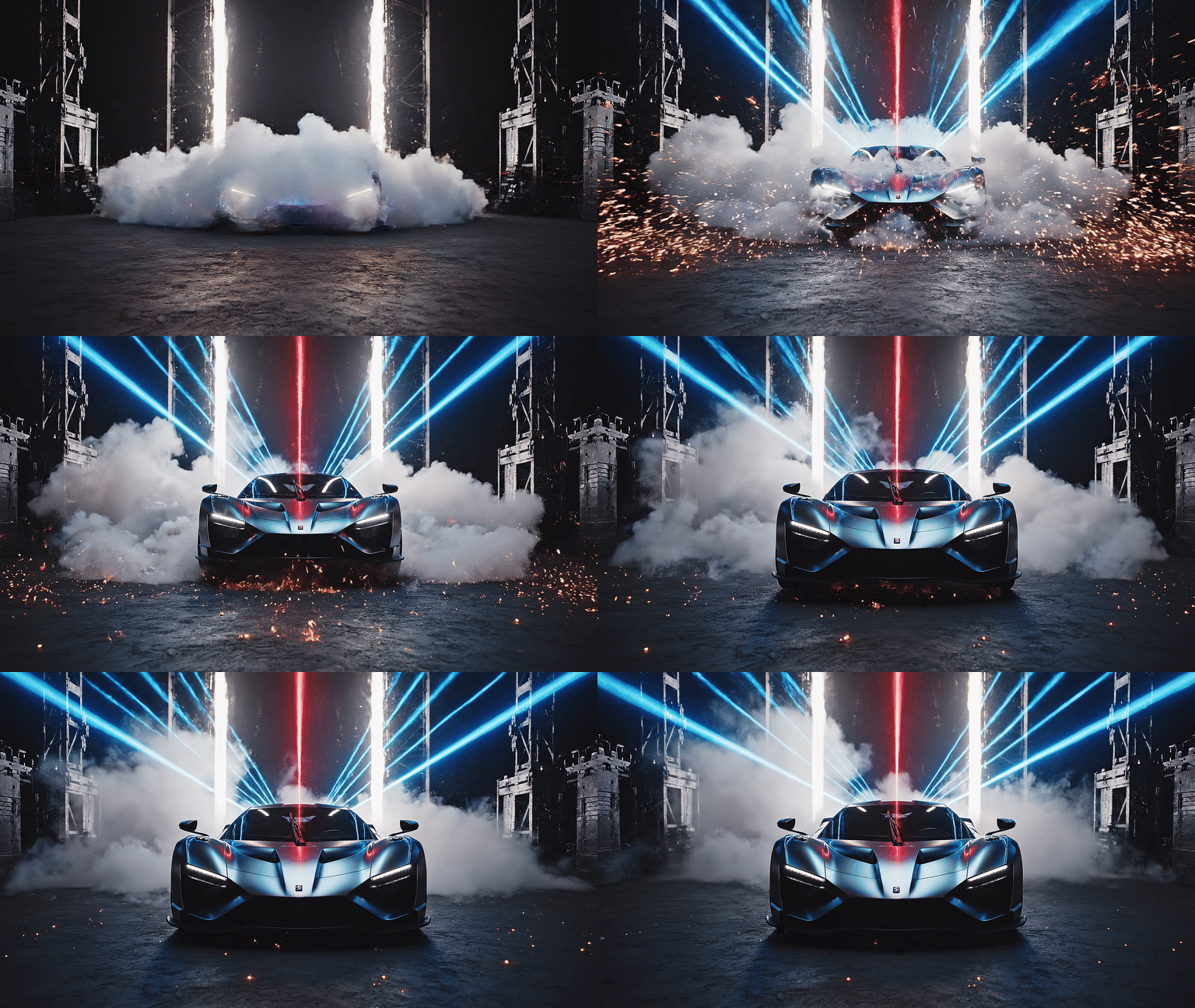
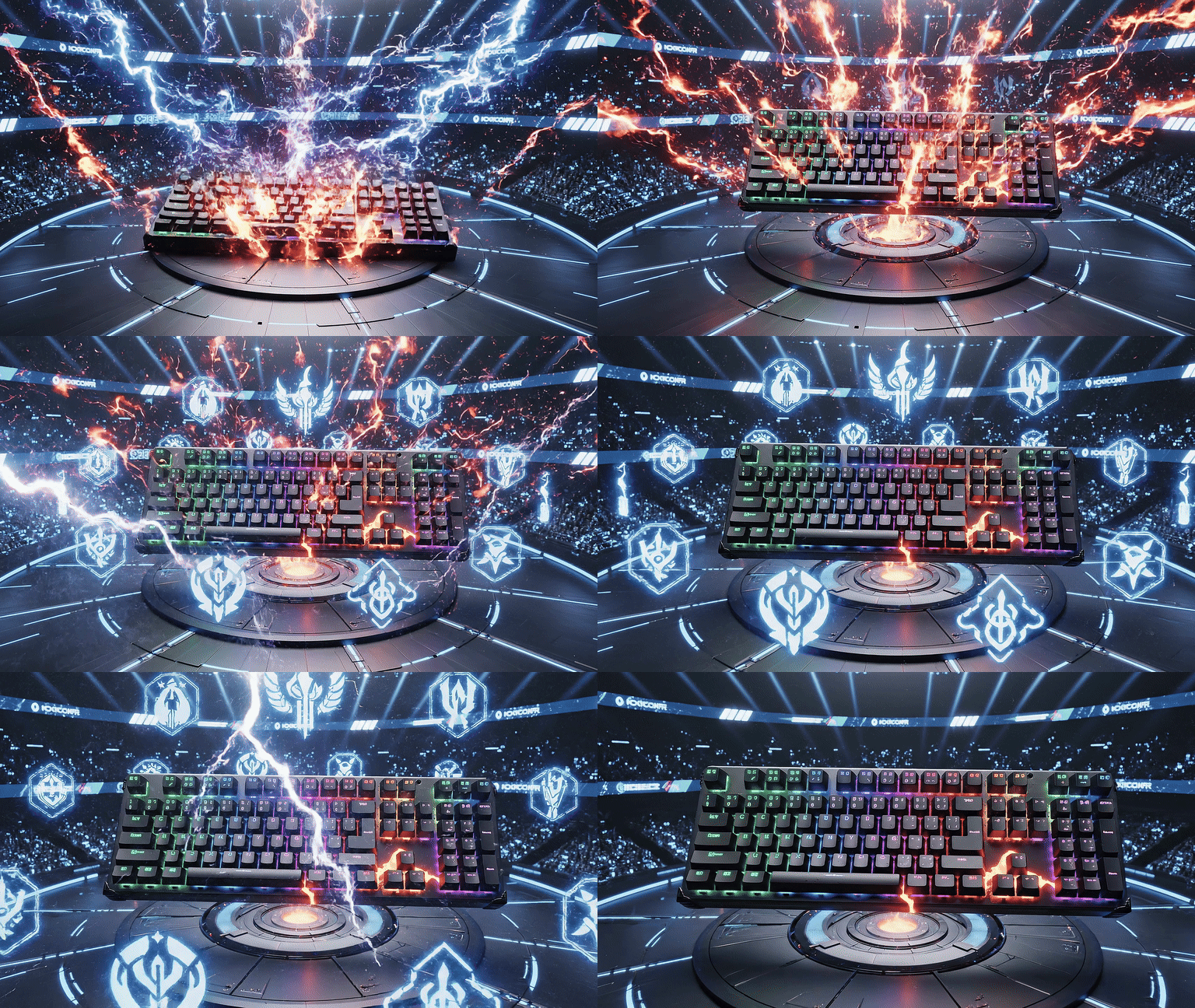

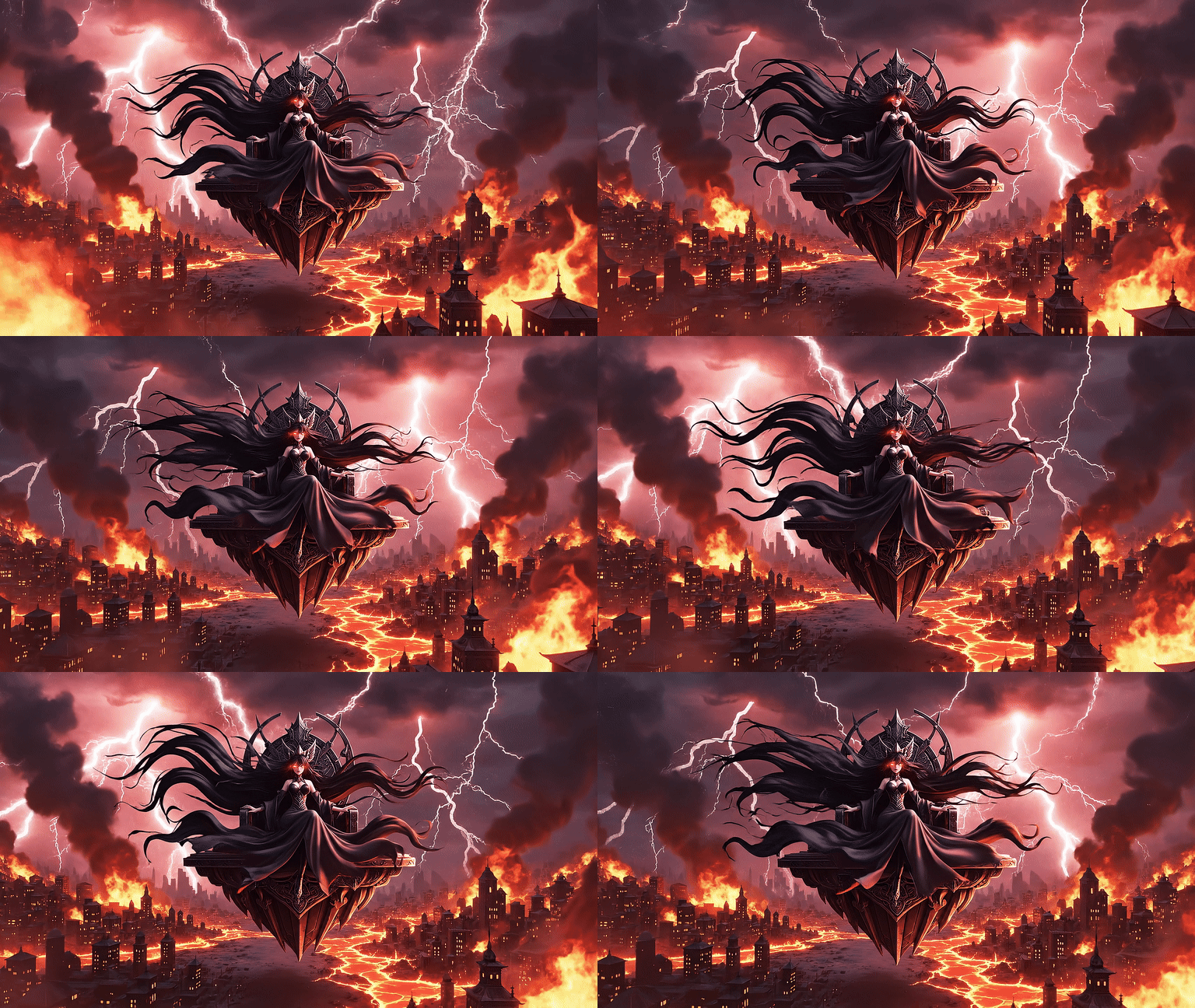
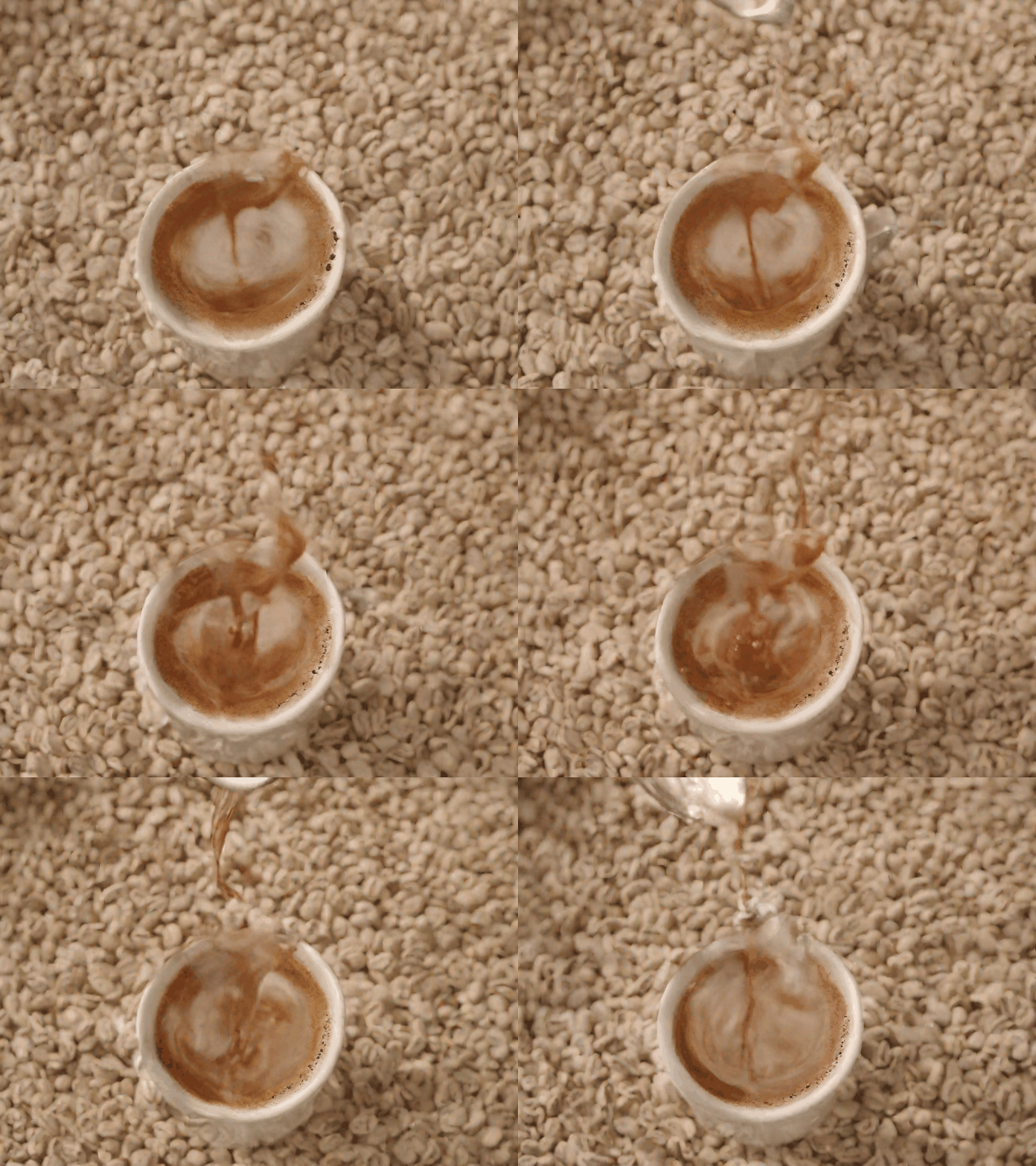

Convert this GIF to MP4 for Instagram feed and Reels.
Convert the finished GIF to MP4 for Stories, feed posts, or Reels, then verify the current requirements for the exact Instagram placement.
Instagram Format Guide
Instagram does not accept native GIF uploads for feed posts — convert to MP4 using the link below.
| Placement | Dimensions |
|---|---|
| Story / Reel | 1080×1920 px (9:16) |
| Feed Post (square) | 1080×1080 px (1:1) |
| Feed Post (portrait) | 1080×1350 px (4:5) |
| Shopping Product Video | 1080×1080 px min |
Convert GIF to MP4 for Instagram feed
Required for feed posts & Reels → free tool
Best Animation Styles for Instagram
Travel & lifestyle
Scene Zoom · Parallax Pan · Cinematic Fade
Smooth motion keeps viewers watching
Products & e-com
Product Reveal · Subtle Glow · Zoom In
Motion drives 3× more clicks than static
Portraits & people
Head Turn · Face Glow · Eye Blink
Natural motion feels personal and authentic
Food & hospitality
Slow Zoom · Scene Warm
Appetite appeal — stops the scroll
Instagram Content You Can Create
Travel & Lifestyle Stories
Animate landscape and travel photos with cinematic zoom and parallax effects for Stories.
Fashion & Beauty Posts
Add subtle motion to outfit photos and beauty shots — makes flat lays come alive in the feed.
Product Reveals
Animate product photos for Stories and Shopping posts — motion drives significantly more clicks.
Food & Restaurant Content
A gentle steam effect or slow zoom on food photos stops the scroll better than static images.
Fitness & Wellness
Animate workout photos and motivational content with energetic zoom-in or glow effects.
Real Estate & Interior
Bring property and interior photos to life with cinematic pan effects for listing posts.
Why Choose Moxion for Instagram GIFs?
vs Canva, Adobe Express, and GIPHY
| Feature | Moxion✦ | Canva | Adobe Express | GIPHY |
|---|---|---|---|---|
| AI animation from your own photo | ✓ | – | – | – |
| Cinematic scene & parallax effects | ✓ | – | – | – |
| Text-to-GIF from text prompt | ✓ | – | – | – |
| 9:16 / 1:1 aspect ratio support | ✓ | ✓ | ✓ | – |
| GIF → MP4 export tool | ✓ | ✓ | ✓ | – |
| Free to start | ✓ | ✓ | ✓ | ✓ |
Ready to Post? Here's How
Download your GIF from Moxion.
For Stories: Convert the GIF to MP4, then verify the current Story format and duration requirements before upload.
For feed posts & Reels: Convert your GIF to MP4 first, then upload as a standard video post.
For Shopping: Convert to MP4 → upload under your product listing as a product video.
Need to convert GIF to MP4? Free GIF to MP4 converter →
Frequently Asked Questions
How do I make a GIF for Instagram?›
Upload an image, choose an animation style, and download the GIF. Convert the finished GIF to MP4, then verify Instagram's current format and aspect-ratio requirements before posting to Stories, feed, or Reels.
Can I post GIFs directly on Instagram?›
Instagram does not support native GIF uploads for feed posts or Reels. Convert the finished GIF to MP4 for an uploadable video file, then verify the current requirements for the exact Instagram placement.
What types of GIFs perform best on Instagram?›
Cinematic scene animations, subtle product reveals, and looping lifestyle content get the most engagement. Avoid fast-cutting or overly complex motion — smooth, satisfying loops perform best in Stories and as video posts.
What image size should I use for Instagram GIFs?›
For Stories and Reels: 1080×1920 px (9:16). For feed posts: 1080×1080 px (square) or 1080×1350 px (4:5 portrait). Upload your image in these dimensions for the best output quality.
Can I use product GIFs on Instagram Shopping?›
Yes — convert your product GIF to MP4 and upload it as a product video on Instagram Shopping. Animated product showcases get significantly more engagement than static product photos.
Is the Instagram GIF maker free?›
はい。1日1回、GIFを無料で生成できます。新規アカウントに登録特典のCreditsは付与されません。共有のQuick Previewは毎日1回無料です。Instagramの品質基準に合う高解像度出力にはStandardをおすすめします。
How do I add a GIF to an Instagram Story?›
Convert the finished GIF to MP4, save the video to your camera roll, and verify the current Story requirements before upload. Instagram also offers GIF stickers from its in-app Sticker tool.
What aspect ratio should Instagram GIFs be?›
For Stories and Reels: 9:16 portrait (1080×1920 px). For feed posts: 1:1 square (1080×1080 px) or 4:5 portrait (1080×1350 px). Stories fill the full screen best at 9:16.